

Add Contact
Easily create contacts in Flowbee.io through single contact creation or bulk contact import. Follow simple steps to add details and upload contacts efficiently.
➕ Add Single Contact
To create a Single Contact, click on “Add New”. A side window will open prompting you to add the details to create the contact – Name, Phone, email, Tags, and other contact details.
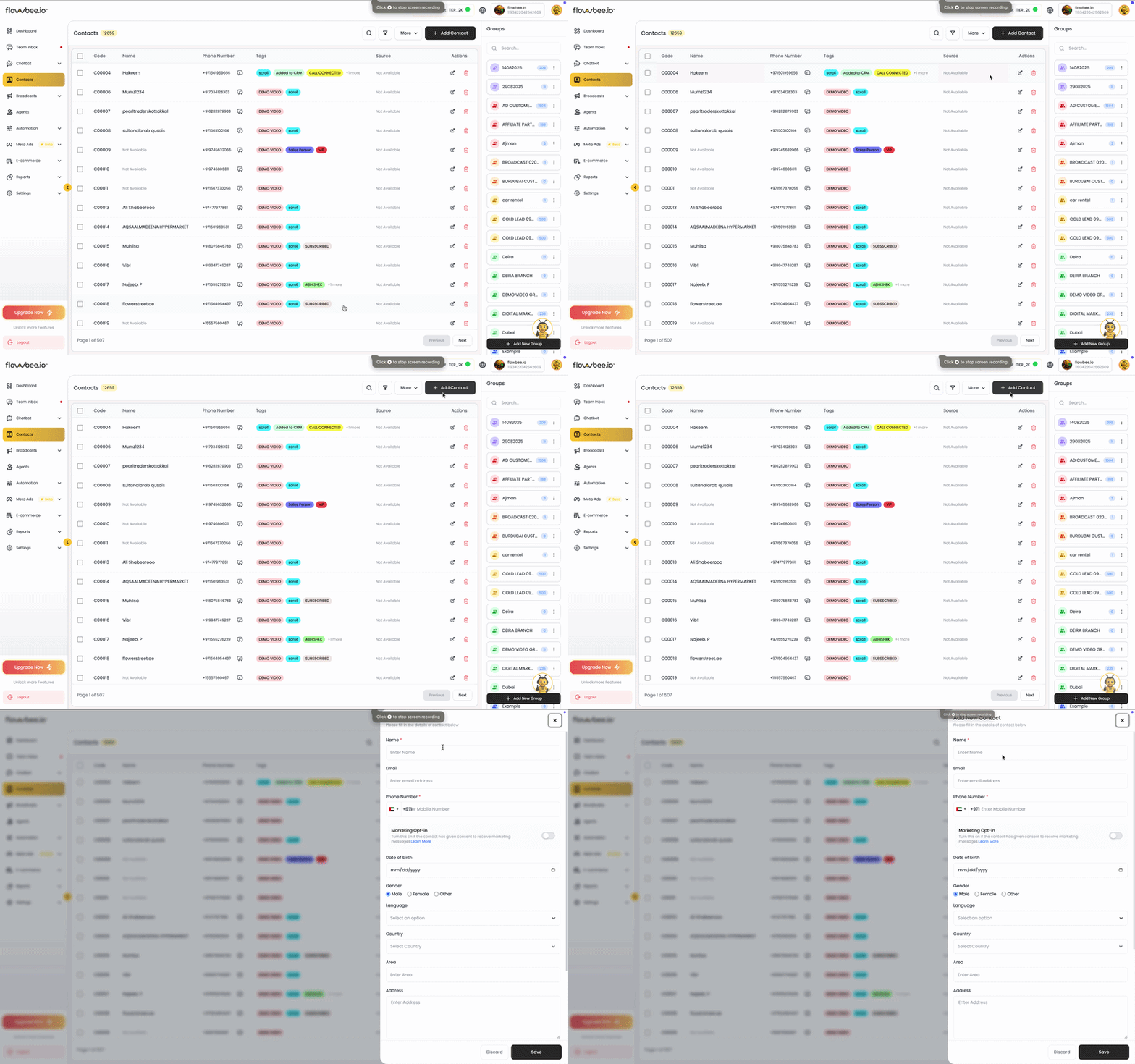
Steps:
- Go to Contacts
- Click Add Contact
- Enter name and phone number
- Save
📥 Bulk Add (Import Contacts)
Bulk Contact Creation allows you to upload multiple contacts at once using an Excel file. This helps you save time and quickly prepare your contact list for campaigns, follow-ups, and communication.
Steps
- Go to Contacts
- Click Import Contacts
- Upload your Excel file
- Map the columns correctly
- Confirm and start import
1.To import contacts in Bulk to Flowbee.io, you have to click on More and then “Import”.
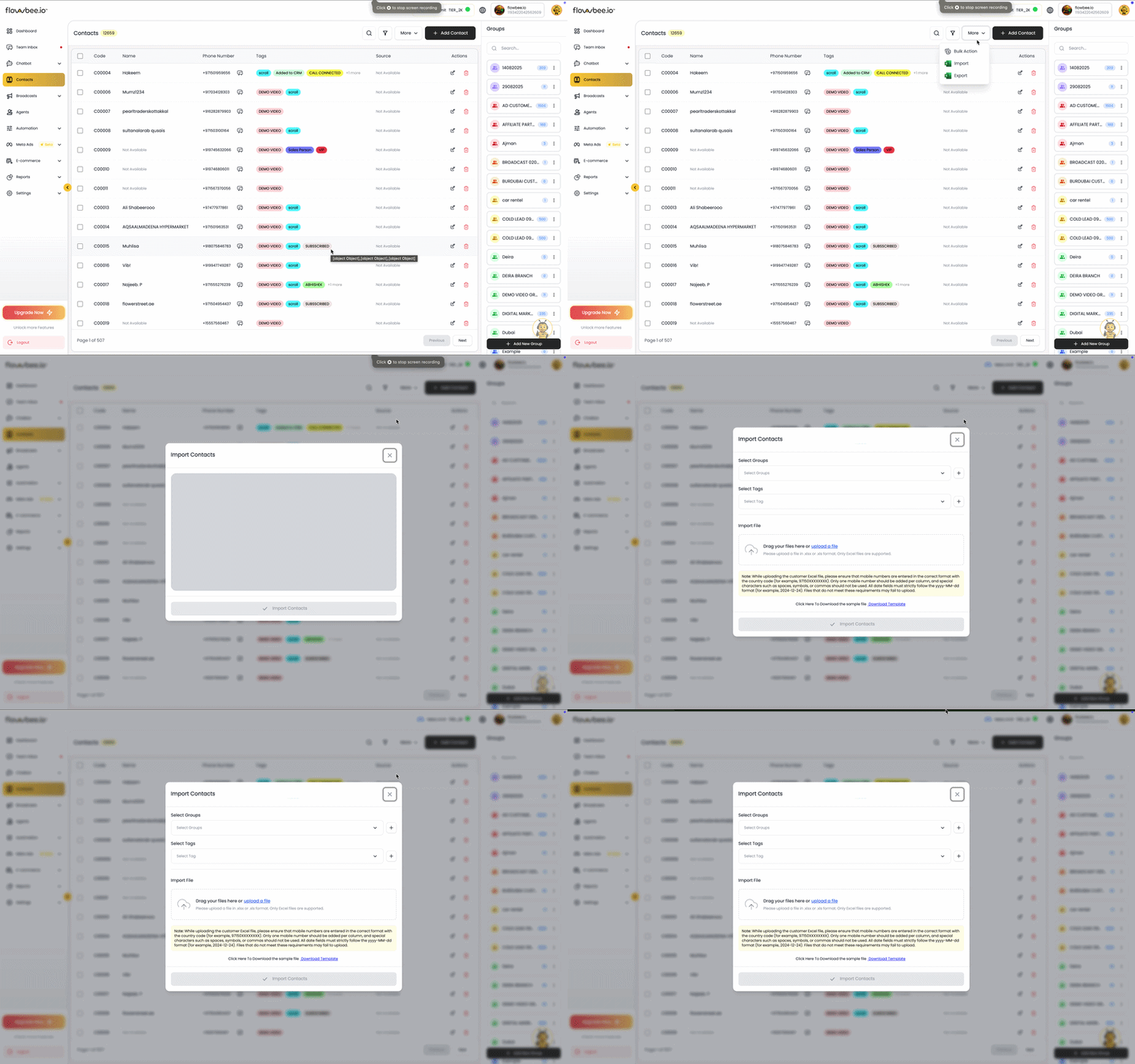
Flowbee provides a sample template file.
👉 Download and use the template to ensure correct formatting and avoid errors.
File Requirements
- File format: Excel
- The file must include mandatory columns: Name and Mobile Number.
- Column names can be customized, but they must be mapped correctly during import.
Mobile Number Format
- Mobile numbers must be in a fixed numeric format
- Do not include: Spaces , Special characters, Symbols like
+
✔ Example:971501234567
❌ Incorrect formats:+971 50 123 4567 , 971-50-123-4567
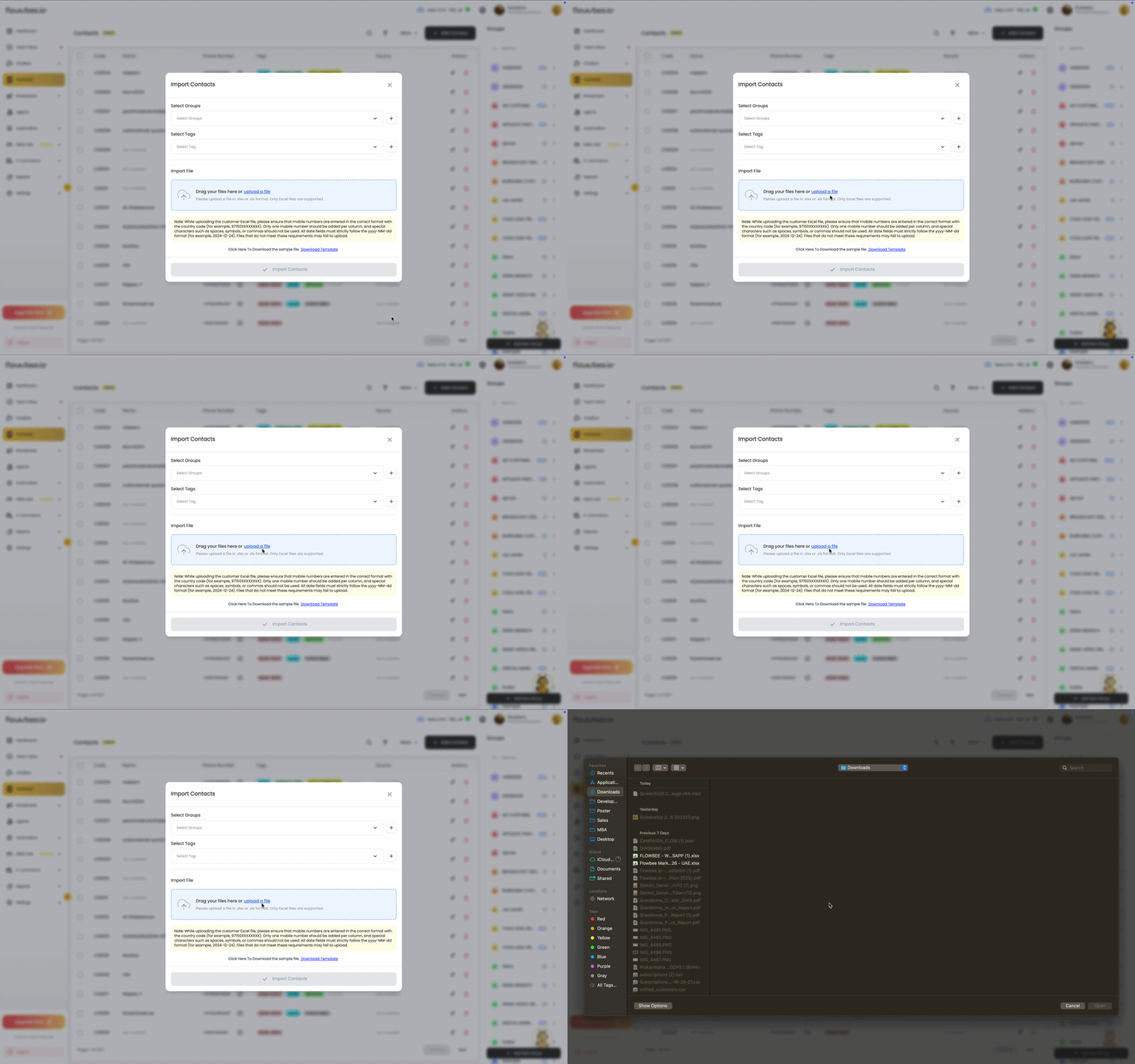
2. Upload File
Once you have created your Excel file following the required format and rules, you can proceed to upload it.
3.The next step is to map the contact fields you have on file with the contact fields.Click Import Contacts
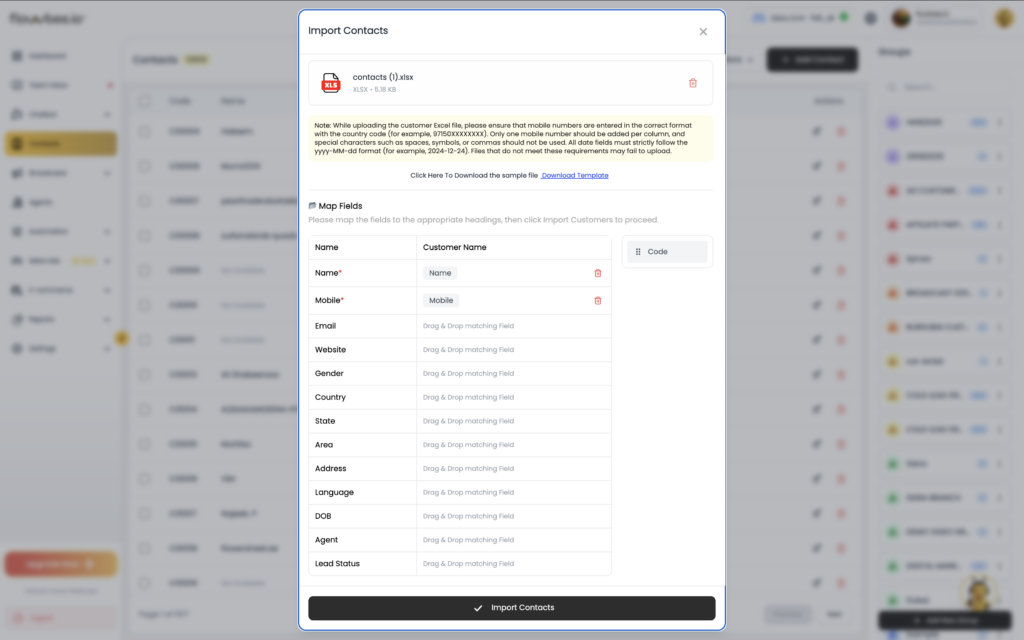
Contacts imported successfully. You can now manage, organize, and use them for campaigns
🔄 Auto-Saving Customer Details
When a customer starts a conversation with your WhatsApp number, Flowbee automatically saves their mobile number in your Contacts. This ensures that every new interaction is captured without any manual effort.
You can later update additional details such as name, tags, or custom fields to keep your contact list organized and up to date.
Key Benefits:
- Automatically capture new contacts
- No need for manual data entry
- Keep contact list always updated
- Easily manage and organize customer data