

Flowbee Dashboard Overview
The Flowbee Dashboard is the main control panel where you can access all tools, view activity, and manage your WhatsApp business operations.
This page explains the main sections of the dashboard so you can easily understand how to use the platform.
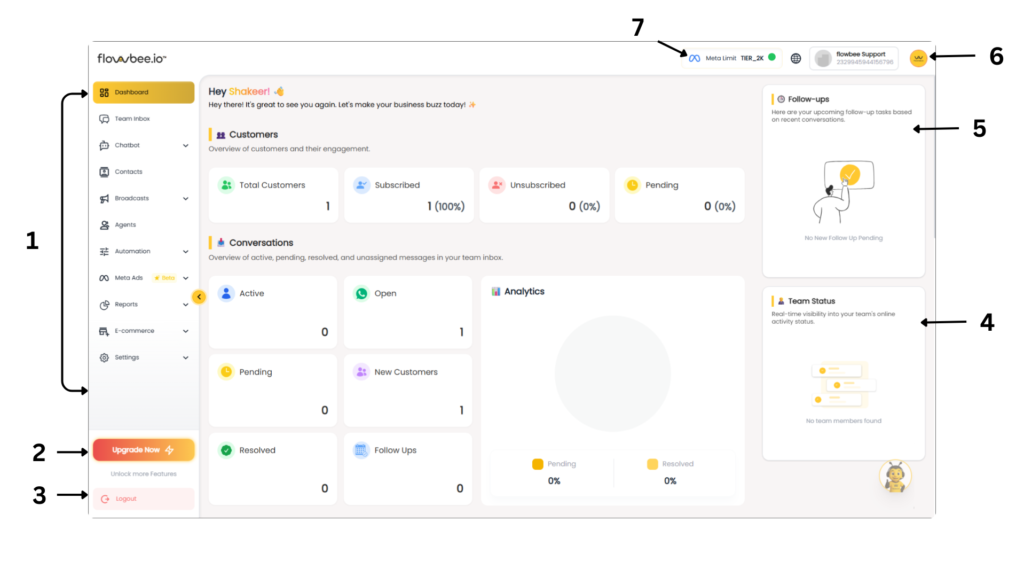
1. Navigation Menu
The left sidebar menu is where you can access all Flowbee tools.
From here you can quickly navigate to different sections of the platform.
Main tools available in the menu include:
- Dashboard – Overview of your account activity
- Team Inbox – Manage customer chats with your team
- Chatbot – Create and manage automated chatbot flows
- Contacts – View and manage your customer database
- Broadcasts – Send marketing or notification messages
- Agents – Manage team members and staff accounts
- Automation – Create automated workflows
- Meta Ads – Track leads generated from Meta ads
- Reports – View analytics and performance reports
- E-commerce – Manage product catalogs and orders
- Settings – Configure system and account settings
This menu allows you to quickly switch between all Flowbee features.
2. Upgrade Plan
The Upgrade Now button allows you to upgrade your Flowbee subscription.
When you click this button you can:
- View available plans
- Compare features
- Upgrade your account
- Unlock additional features
Upgrading your plan increases your system capabilities and messaging limits.
3. Logout
The Logout option allows you to securely exit your Flowbee account.
Always use the logout option when you finish using the system, especially if you are using a shared computer.
This helps keep your account safe.
4. Team Status
The Team Status panel shows the real-time activity of your team members.
Here you can see:
- Which team members are online
- Which agents are active
- Availability of staff handling customer conversations
This helps supervisors and managers monitor team activity and support performance.
5. Follow-Ups Panel
The Follow-Ups section displays pending follow-up conversations.
These are customers who need a reply or further communication.
From this panel you can:
- View upcoming follow-ups
- Click directly on a follow-up
- Start chatting with the customer immediately
This feature ensures no customer conversation is forgotten.
6. Profile & Account Panel
When you click on your profile icon, a side panel will open.
From this panel you can:
- View your account information
- See your connected WhatsApp number
- Check your current subscription plan
- Access User Settings
- Logout from the system
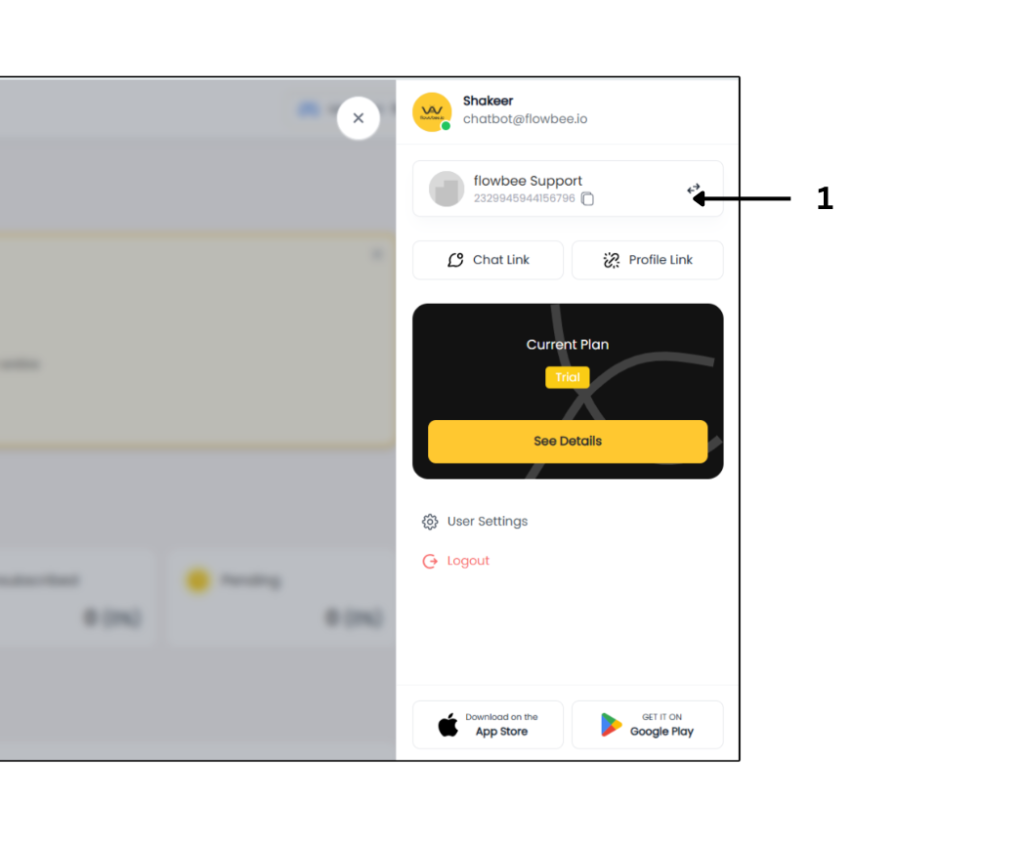
You can also switch between branches from this panel if your business has multiple branches connected to Flowbee.
This makes it easy to manage multiple locations from one account.
7.Meta Messaging Limit Indicator
At the top of the dashboard you will see your Meta Messaging Limit indicator.
This shows the messaging tier approved by Meta for your WhatsApp Business account.
Example:
Meta Limit: Tier 2K
This means you can send messages to up to 2,000 unique customers within a 24-hour period.
As your account gains trust and activity increases, Meta may automatically increase your messaging tier.
Higher tiers allow you to send messages to more customers.
Dashboard Summary
The Flowbee Dashboard gives you a quick overview of your business communication and tools.
From one place you can:
- Access all Flowbee features
- Monitor team activity
- Track follow-ups
- Check messaging limits
- Manage your account settings
Understanding the dashboard helps you use Flowbee efficiently and manage customer communication smoothly.